JSON Tools
Format, Validate, Compare & Transform
All-in-one JSON toolkit. Format and minify, validate with error highlighting, compare objects, explore with tree view, and convert to YAML, CSV, or TypeScript. 100% client-side - your data never leaves your browser.

JSON Tools
Want a JSON5 reference? JSON5.dev, a separate site from the same developer. Working with JSON Lines logs? JSONL.rest, a separate site from the same developer.
Input JSON
Output
JSON Validator
Invalid JSON
Valid JSON
Your JSON is syntactically correct and well-formed.
Original JSON
Modified JSON
Differences
Identical JSON
Both JSON objects are semantically identical.
Input JSON
Tree View
Tree will appear here. Click any value to copy its JSONPath.
Filters such as ?(@.price < 10) are supported. Runs on the JSON on the left.
JSON data
JSON Schema
Generate a schema from the data
Check the data against the schema
Every problem is listed with a JSON pointer to the exact value and a plain message.
Generated schema
Validation result
Results appear here after you validate.
What the validator checks
It checks JSON Schema drafts 4, 7, 2019-09 and 2020-12 and runs entirely in your browser. The draft is read from the schema's $schema, or you can pick one. Supported: type, enum, const, properties, required, additionalProperties, patternProperties, propertyNames, minProperties, maxProperties, items, prefixItems, contains, minContains, maxContains, minItems, maxItems, uniqueItems, minLength, maxLength, pattern, minimum, maximum, exclusiveMinimum, exclusiveMaximum, multipleOf, allOf, anyOf, oneOf, not, if/then/else, dependentRequired, dependentSchemas, unevaluatedProperties, unevaluatedItems, $ref to #, #/... and $anchor locations inside the schema, and format checks for date-time, date, time, email, uri, uuid, ipv4, ipv6 and more.
A $ref to another file or URL is not fetched: the result says the schema could not be checked instead of passing it silently.
Input JSON
Output
Common Use Cases
API Response Debugging
Format and validate API responses to quickly understand data structure and find issues.
Config File Comparison
Compare two versions of JSON config files to see exactly what changed between deployments.
Data Exploration
Use Tree View to explore complex nested JSON structures and find the path to any value.
TypeScript Generation
Convert JSON to TypeScript interfaces for type-safe development with automatic type inference.
Data Migration
Convert JSON to YAML for Kubernetes configs or CSV for spreadsheet analysis.
Path Discovery
Find the exact JSONPath to access deeply nested values in complex JSON structures.
JSON Reference: Syntax, Types, Errors and JSONPath
The rules JSON actually enforces (RFC 8259), the mistakes that break parsers, and how to point at any value in a document.
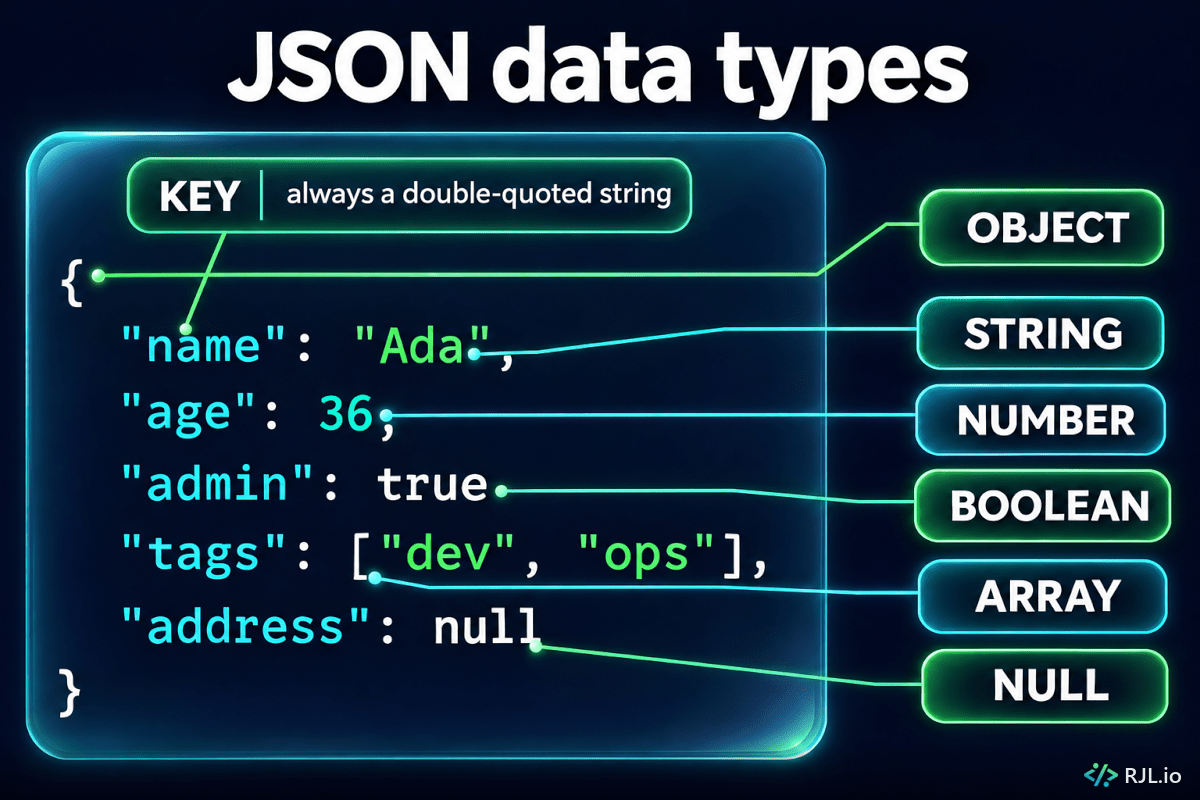
Data types and structure
A JSON document is one value. That value is either a primitive (string, number, boolean, null) or a container that holds more values: an object (named values) or an array (ordered values). Containers nest to any depth, which is how a flat text file describes a whole tree of data.
| Type | Example | Rule |
|---|---|---|
| Object | {"id": 7} | Comma-separated "key": value pairs in braces. Keys should be unique |
| Array | [1, "a", null] | Ordered values in square brackets. Types can be mixed |
| String | "Ada" | Double quotes only. Special characters are escaped with a backslash |
| Number | 36, -1.5, 2e3 | Decimal only. No leading zeros, no + sign, no NaN or Infinity |
| Boolean | true, false | Lowercase, no quotes |
| Null | null | Lowercase, no quotes. Means "no value" |
See the shape of your own data with Tree View.
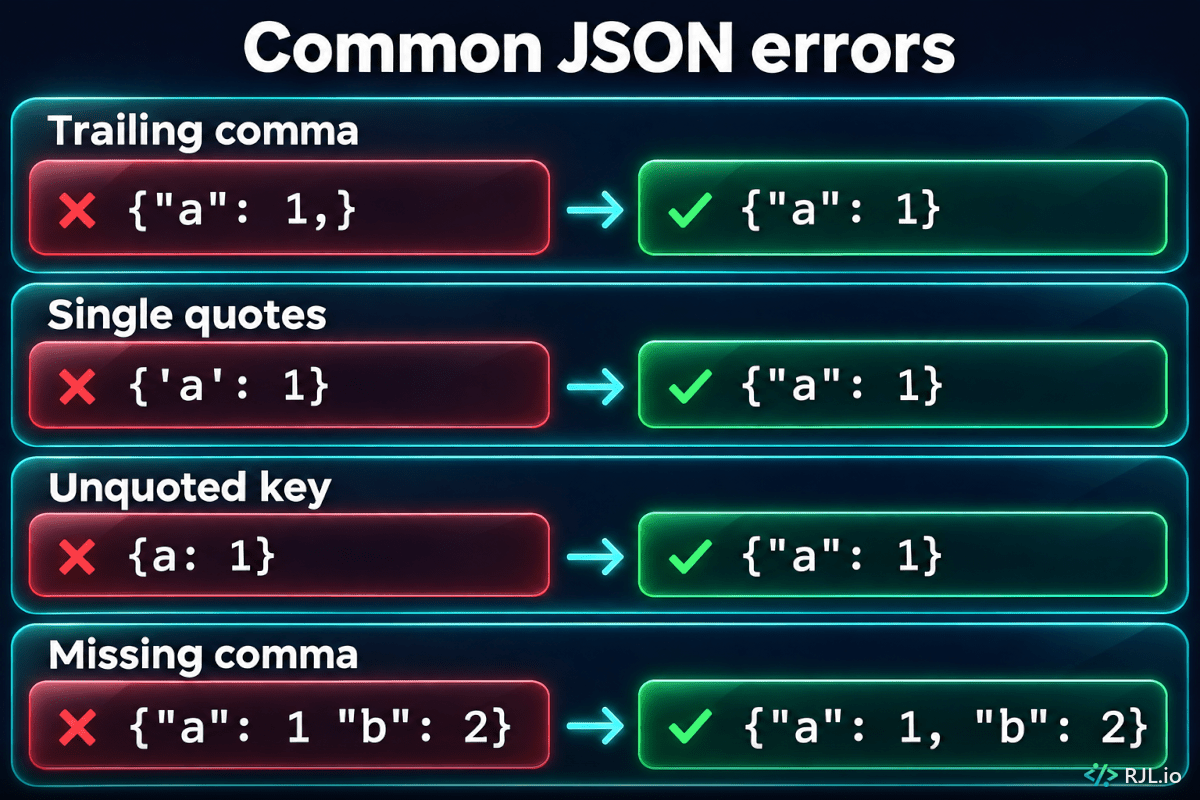
Common JSON syntax errors and fixes
Almost every "Unexpected token" or "Expected ',' or '}'" message comes from a short list of mistakes. The validator shows the line and column; look at that spot and the character just before it.
| Error | Why it fails | Fix |
|---|---|---|
| Trailing comma | A comma must be followed by another value | Delete the last comma before } or ] |
| Single quotes | Strings and keys need double quotes | Replace ' with " |
| Unquoted key | Keys are strings | Wrap the key in double quotes |
| Missing comma | Two values with nothing between them | Add a comma between members |
| Comments | JSON has no comment syntax | Remove // and /* */, or store notes in a key |
| Unescaped newline in a string | Control characters must be escaped | Use \n inside the string |
| Capitalized or non-JSON literal | True, None, undefined, NaN are not JSON | Use true, null, or leave the key out |
| Unbalanced brackets | A { or [ was never closed | Format the text and match each opener to its closer |
Paste the broken text into the Validate tab to get the exact position. Error wording differs between browsers, but the position is what matters.
String escapes
| Write | Meaning |
|---|---|
\" | Double quote |
\\ | Backslash |
\/ | Forward slash (optional escape) |
\n \r \t | Newline, carriage return, tab |
\b \f | Backspace, form feed |
\u00e9 | Any character by its 4-digit hex code. Characters above U+FFFF use two codes, for example \ud83d\ude00 |
Characters below U+0020 (such as a raw newline or tab) must always be escaped. Everything else can appear as plain UTF-8.
Number rules
| Valid | Invalid | Why |
|---|---|---|
7 | 07 | No leading zeros |
0.5 | .5 | Digits required before the point |
5 | 5. | Digits required after the point |
-3 | +3 | No plus sign |
1e3, 1E-2 | 0x1F | No hexadecimal |
null | NaN, Infinity | Not representable |
JSON itself puts no limit on digits, but JavaScript reads numbers as 64-bit floats, so integers above 9,007,199,254,740,991 (253 - 1) lose precision. Send large IDs as strings.
JSON vs a JavaScript object literal
JSON looks like JavaScript, which is why code copied from a console or a config file so often fails to parse. JSON is a strict, text-only subset of the syntax.
| Feature | JavaScript object | JSON |
|---|---|---|
| Keys | Bare names, strings or symbols | Double-quoted strings only |
| String quotes | Single, double or backtick | Double only |
| Trailing commas | Allowed | Not allowed |
| Comments | Allowed | Not allowed |
| Values | Functions, undefined, dates, NaN, Infinity, and more | Object, array, string, number, boolean, null |
| Dates | Date objects | No date type. Use an ISO 8601 string such as "2026-11-26T15:04:05Z" (see the Timestamp Converter) |
Need to work with YAML configs instead? Use the YAML / JSON Converter, or compare two payloads with the Diff Checker.
JSONPath basics
JSONPath (standardized as RFC 9535) is a short way to name one value inside a document: start at the root $, then step down by key or index. In the Tree View, click any value and the tool fills in its path using exactly these building blocks, ready to copy.
Example document
{
  "store": {
    "name": "Corner Books",
    "books": [
      { "title": "Dune", "price": 9 },
      { "title": "Emma", "price": 7 }
    ]
  }
}| Path | Selects |
|---|---|
$ | The whole document |
$.store.name | "Corner Books" |
$.store.books[0] | The first book object |
$.store.books[1].title | "Emma" |
| Syntax | Meaning | In this tool |
|---|---|---|
$ | Root of the document | Generated |
.name | Child by key | Generated |
[0] | Array element by index (starts at 0) | Generated |
['name'] | Child by key in bracket form, for keys with spaces or dots | Standard JSONPath, not generated |
[*] | Every child | Standard JSONPath, not generated |
..name | Descendant search at any depth | Standard JSONPath, not generated |
[0:2] | Array slice (start up to, not including, end) | Standard JSONPath, not generated |
[[email protected] < 8] | Filter: children where the test is true | Standard JSONPath, not generated |
The tool shows you the path to a value you click; it does not run JSONPath queries against your data.
Which tab should I use?
| You want to... | Use | Tip |
|---|---|---|
| Read a one-line API response | Format | Beautify with 2 spaces; minify again before sending it back |
| Find out why a parser rejects your text | Validate | Check the line and column, then the character just before it |
| See what changed between two payloads | Compare | Turn on "Ignore key order" when key order is not meaningful |
| Explore a deeply nested document | Tree View | Click a value to copy its JSONPath |
| Generate a JSON Schema, or check data against one | Schema | Generate from a sample, then validate the real payloads against it |
| Turn JSON into another format | Convert | YAML, CSV (for arrays), TypeScript interface, Zod schema, XML, JSONL, or typed models for Go, Rust, C#, Python, Java, Swift and Kotlin |
JWT payloads are JSON too: decode one with the JWT Decoder or the Base64 Encoder, then paste the payload here.
JSON cheat sheet
A printable reference: syntax, the six types, string escapes, number rules, common errors and JSONPath basics.
Download the JSON Tools cheat sheet (PDF)Frequently Asked Questions
Pretty Print is a multi-format code formatter supporting JSON, XML, SQL, YAML, CSS, and HTML. JSON Tools is a specialized JSON-only toolkit that adds powerful features: validation with detailed error messages, semantic object comparison (diff), interactive tree view with JSONPath discovery, and format conversion to YAML, CSV, TypeScript interfaces, and XML. If you're working specifically with JSON, JSON Tools provides a much richer experience.
The compare feature performs a semantic comparison of JSON structures, not a simple line-by-line text diff. This means it correctly identifies added, removed, and changed values even if the key order is different. You can also enable "Ignore key order" to compare only the values regardless of how keys are arranged. The diff output highlights additions in green, removals in red, and changes in amber with both old and new values shown.
JSONPath is a query language for JSON, similar to XPath for XML. It provides a way to reference specific values in a JSON document. In the Tree View, click any value to see its JSONPath (e.g., $.users[0].name). You can use this path in JavaScript with libraries like jsonpath, or in many programming languages and tools that support JSONPath queries.
Currently you can convert JSON to: YAML (great for Kubernetes configs, Docker Compose, CI/CD pipelines), CSV (for arrays of objects - perfect for spreadsheet analysis), TypeScript interfaces (automatically generates type definitions for your JSON structure), and XML (for legacy system integration). All conversions happen entirely in your browser.
Yes! The tool handles JSON files up to several megabytes efficiently. For very large files, the comparison may take a few seconds. The Tree View can also handle large JSON structures with smooth scrolling and search functionality. For extremely large files (10MB+), consider using the minify feature first to reduce size, or splitting the JSON into smaller chunks.
No. All processing happens entirely in your browser using JavaScript. Your JSON data never leaves your device - there are no server calls, no analytics on your content, and no data storage. The tool works completely offline after the page loads. This makes it safe to use with sensitive data like API keys, configuration files, or personal information.
The most common JSON errors are: trailing commas (remove the comma after the last item in arrays/objects), single quotes (JSON requires double quotes), unquoted keys (all keys must be in double quotes), and missing commas between elements. The Validate tab shows the exact line and column where errors occur, making them easy to locate and fix. For more complex formatting issues, try our Pretty Print tool which handles multiple formats.
Yes! The Convert tab lets you transform JSON arrays into CSV files that open directly in Excel, Google Sheets, or any spreadsheet application. This is perfect for analyzing API response data, log files, or database exports. For encoding data for transmission, check out our Base64 Encoder. If you need to generate test data with unique identifiers, our UUID Generator creates RFC-compliant UUIDs.
The TypeScript converter analyzes your JSON structure and generates type-safe interfaces. It infers types from values (string, number, boolean, null), creates nested interfaces for objects, and properly types arrays. For example, an array of objects becomes UserItem[] with a corresponding interface UserItem. This saves significant time when working with API responses in TypeScript projects.
Use the Tree View tab for navigating complex nested structures. The tree shows objects and arrays with expand/collapse controls, displays the number of keys or items at each level, and lets you search for specific keys or values. Click any value to see its JSONPath, which you can copy and use in your code. The "Expand All" and "Collapse All" buttons help you quickly overview the structure or drill into specific sections.
Absolutely! JSON Tools works great alongside other RJL.io tools. Use the Pretty Print tool for formatting XML, SQL, or CSS alongside your JSON. Generate QR codes containing JSON data for quick sharing, or use the QR Scanner to read JSON from QR codes. For barcode data, check our Barcode Generator. All tools are free, work offline, and respect your privacy.
Yes. The Schema tab generates a draft 2020-12 JSON Schema from your data, with types, required properties, merged array items, formats such as date-time, uri and uuid, and an optional additionalProperties false. It also validates data against a schema you paste and lists every problem with a JSON pointer to the exact value and a plain message. The validator reads drafts 4, 7, 2019-09 and 2020-12 (picked from your $schema, or chosen in the Schema tab) and covers $ref, $anchor, if/then/else and unevaluatedProperties. It reads the schema directly instead of compiling it, so it runs in your browser without eval. A $ref to another file or URL is not fetched, and the result says so.
Yes. In the Tree tab, type a JSONPath such as $.store.book[?(@.price < 10)].title and press Run to list the matching values or their paths. Filter expressions work, and they are evaluated by a safe interpreter that never runs your text as code.
Yes. In the Convert tab, choose one of the typed model formats. The generator reads your JSON, works out nested types and which fields are optional or null, and writes the structs or classes for that language. It loads the first time you use it, and your JSON never leaves your browser.
Yes. Set Input mode to Relaxed to accept comments, trailing commas, single quotes, unquoted keys, hex numbers and a leading plus sign. The tool shows what it normalized and gives you strict JSON back. Set it to JSONL to read one JSON value per line, with every bad line reported by its number. Convert can also write JSONL, or a Zod schema, from any JSON.
Why We Built JSON Tools
Developers work with JSON constantly - it's the universal data format for APIs, configuration files, and data exchange. But working with JSON often requires juggling multiple different websites: one for formatting, another for validation, a third for comparing changes, and yet another for conversions. Each context switch breaks your flow and wastes time.
JSON Tools consolidates five essential JSON utilities into one cohesive interface. Format and minify with customizable indentation. Validate with detailed error messages that pinpoint exactly where the problem is. Compare two JSON objects with semantic diffing that understands structure, not just text. Explore nested data with an interactive tree view that shows you the JSONPath to any value. Convert to YAML, CSV, TypeScript, or XML with a single click.
Like all tools on RJL.io, JSON Tools runs 100% in your browser. Your data never touches our servers. There's no tracking, no accounts, no limits. Just paste your JSON and get to work. Whether you're debugging an API response at 2am or comparing config files before a deployment, JSON Tools has everything you need in one place.
Need more developer tools? Check out our Pretty Print for multi-format code formatting, Base64 Encoder/Decoder for encoding data, or UUID Generator for creating unique identifiers. For working with APIs, try our QR Code Generator or scan codes with our QR Scanner.